Categories
Computers Information Technology Linux

Wrap Up Of A Week Each with Unity and Gnome 3

Somehow I knew that when I wrote my last post about working for a week each with Unity and Gnome 3, that this post would not necessarily come two weeks after. Daily activities and the Stanley Cup finals sort of sidetracked me (well worth it though  – Woooooo! Bruins! Congratulations!)

The good part is I did take down some notes so that I would hopefully not forget any point I wanted to make, one bad thing is that I forgot to get screenshots. That said, I did not change the default interfaces other than the background image, so if you are familiar with either interface, or have screenshots, those default setups are what I worked with. I’ll also mention here that my side experiment I mentioned in the previous post of running Windows as a VM were mixed under both environments, but I think this was due to subpar video on the laptop I was using.

My goal was not to do a full technical review, but to look at each of these interfaces from a usability perspective. Not to get ahead of myself, but it does seem clear to me that both of these interfaces are meant for newer folks to Linux, or not as technically oriented people who just want to use a computer. I did try to keep this in mind as I worked with these environments, but I found it tough at times since I am a more than average technical user. Hopefully I don’t come across as unfair at all. Also, as mentioned in my previous post, my other concern is the higher hardware requirements needed – neither one would run as a VM.

Unity (Ubuntu 11.04 Default Interface)

When you first enter Unity, the first thing you notice is the launcher bar on the left side of the screen. This wasn’t really foreign for me, since I’ve actually been experimenting with the taskbar on the left side of the screen in Windows for about three months now. There is also one master menu in the upper left (as opposed to the gnome 2.x default 3 menu bar). The launcher bar is fixed in size, which could take up a large amount of real estate on some smaller resolution screens. I did install a package that allows you to change the launch bar size – compizconfig-settings-manager. When you click on the menu, it brings up what I found to be a bit too simplistic grid of large icons for apps. If you don’t see the app you want, and know that it is installed, the fastest way to get to it is to type the name, and hope you have it correct so it finds it. Otherwise, you’re typically left with quite a few mouse clicks to get to where you need. Once you find it, you can add to the launcher for quicker access. This grid of icons, along with the square icon look of the launcher, seem to lend itself to a mobile OS rather than a desktop OS. I found it interesting that as I was doing some things under Unity, my 6 year old came up to me and asked if the laptop screen was a touchscreen.

A while back, Microsoft tried to cram a desktop OS into a mobile platform (Windows CE, and Mobile 6.x and before – I don’t have any experience with Windows Phone 7 OS). This didn’t work great then, and I’m not sure it works great going the other way – taking elements of mobile OS’s and bringing them to the desktop to the point where it resembles a mobile OS. I expect one experience from a desktop OS, and another from a mobile OS. Or maybe I’m just a bit too old school and haven’t warmed up to the idea, yet… time will tell.

Some minor things I noticed in Unity:

  • To re-position an app in the launcher, you need to drag it out of the launcher bar, then back into it in it’s desired location.
  • The previous mentioned need to install a package to adjust the size of the launcher bar.
  • Some inconsistencies with how apps are maximized – some maximize so their close button, etc are in the title bar of the OS, others remain in the title bar of the app.
  • When I did launch apps via VMWare Unity (not the same as Ubuntu Unity), it did not create an icon in the launcher for that app, where it does create an entry in the taskbar of Gnome 2.x.

Gnome 3 (Default Interface in Fedora 15)

The first thing I ran into with Fedora 15 is that wireless network did not work. But since this isn’t a technical review of the particular distro, I simply did not put in much effort to fix it. I plugged in my ethernet cable, and moved on.

My first thoughts about Gnome 3 were “same, yet different” when compared to Unity. Because of this, this section may be a bit shorter than the Unity section, mostly because it will be comparison.

There is still the menu at the top left, call Activities. The difference here is that the launcher, also on the left side, does not appear until you click on Activities or activate a hotspot corner. This is a bit of a minus in my book. When you click on the Activities menu, you are presented with a similar set of large grid icons for apps, where if you don’t see the app you want, you are now in the situation of typing the name, or on a too many mouse click trail to get to the app. Again, here, perhaps a little too “mobile OS like”.

The other things I noted in Gnome 3:

  • The same app re-position issue as in Unity, you have to move the app outside the area to then move it back in to desired postion.
  • I am not sure if this is a Gnome or Fedora issue, but to shut down the machine, it appears like you need to log off first. Shut Down does not appear to be an option under the user action menu that is in the upper right.

Final Thoughts

I probably sound like I’m coming down a bit hard on each. I do think they are fine environments for the non-technical user who wants to check their web based email, do general web browsing, occasional access to office apps (using Libre Office), etc. That said, I can’t help but think there were really designed for mobile (especially tablet) platforms, and are being forced on the desktop. Most folks that think of using Linux tend to be more technically savvy, and therefore, I think, expect a different, and more robust, experience from their desktop than with a mobile platform. Ubuntu does offer to change your selection to Ubuntu Classic, which is Gnome 2.x. I am not aware of a similar function in Gnome 3, but if you didn’t have the hardware to run Gnome 3 default, then it will revert to an interface similar to Gnome 2.x.

I do tend to try and have an open mind about changes like these – at least developers are trying to innovate. So perhaps these environments will grow on me over time… or not.

But what say you? Let’s do a “Science Attic” first and do a poll! Please leave comments too, if you’d like, especially if the poll misses your point of view!

Categories
Computers Information Technology Linux

A Week Each With Unity (Ubuntu 11.04) & Gnome 3 (Fedora 15)

There are some interesting changes that Ubuntu‘s new Unity interface, and Gnome’s new version 3 bring to the table. I say “interesting” because if you look around the internet enough, you’ll find quite a mix of opinions on both.

Of course I’m interested in what all the discussion is about. I’ve decided to commit to working with each for one week so see what thoughts I come away with. The reason for a week is I don’t want to come up with impressions after working only a few hours with any particular environment, then hastily come to conclusions based on those impressions.

To level set what my Linux background is, and where I’m coming from is that I’ve played with plenty of Linux distros, usually ones based on Gnome 2.x, and therefore primarily what I am used to. I would not label myself as any sort of Linux expert, but do consider myself reasonably proficient. Most of my knowledge of Linux was self taught until recently when I took a one week class in Linux Fundamentals in February, and another one week course in Linux Administration a few weeks ago. The product I support is a Storage Virtualization solution, in which the management server and the directors run Linux instances. So most of what I do in Linux for work is in the CLI.

Side note regarding the Linux Administration class. This was a remote class I took from home, which resulted in a proud “geek dad” moment for me. My 6 year old son saw me taking the class, and was intrigued. He then insisted that I sit with him, so I could teach him “just like in Linux class” – and he was all about the CLI, since that was what class focused on. (Sorry, had to get this in there!)

So back to Unity and Gnome 3. I downloaded the iso’s for both Ubuntu 11.04 and Fedora 15 and fired up VMWare Workstation. Installed each and… ugh. The main features for both Unity and Gnome 3 will not run as a VM (at least on my systems). So it looks like my first point of concern is the hardware requirements to run these environments the way they are intended. It appears as though you will need to run these on the bare metal.

Luckily, I have a laptop that I did not have much data on, so it was pretty painless to wipe it and install these. Since last night I have Ubuntu 11.04 running Unity installed, from which I am writing this post. Next week I will wipe it and install Fedora 15. The test system in question is a Toshiba Satellite L505D-ES5025 (2.3 GHz AMD Turion II M520, 4GB RAM, 320GB HDD) that I have had just over a year.

One other experiment I am doing since I will be running Linux on the hardware itself vs. a VM: I will be installing VMWare Player and will see what sort of experience I have with running Windows 7 as a VM.

So let’s see how this goes…

Categories
Computers Information Security Information Technology Social Networking

Repost (and Edited): Creating Good Passwords

This is originally a post I did back in 2008, which I have edited to tweak some of my original recommendations. This has become especially more important as sites like Facebook, Twitter, and online emails are becoming more the focus of online attacks.

Most companies and universities have password policies in place that enforce complexity requirements. But do you have a good policy you use for your personal accounts? You should create good strong passwords for any accounts you access – your email, Facebook, Twitter, eBay, online merchants, your personal finance file on your system, etc.

When creating your password, it should:

  • Be at least 10 characters long, but be easy to remember (more on this in a second).
  • Contain at least one capital letter, a digit, and a special character along with the lower case letters. Some web sites may not allow special characters (shame on them!!), so be creative with more digits (preferably) or capital letters.
  • Not be built from a dictionary word or any name – including character substitution!! For example, password is obviously a BAD password, but P@ssw0rd is also a bad password. Another example here would be something like Und3rd0g! or T0m&J3rry (guess I’m in cartoon mode here). Hacking utilities would have these figured out in very little time.
  • Not contain sequences, patterns, or repeated characters, for example 123, 111, qwerty, etc.

So I mentioned making your password at least 10 characters. I used to like to make them 8 characters exactly. Perhaps this is because of my past experience using UNIX systems, where the first 8 characters only were significant (standard UNIX at the time would ignore anything after 8 characters), but I also thought 8 characters would be easier for most to remember, although now I think 10 would be fairly easy, with time, to commit to memory. Once you get used to your new password, it will become second nature. What you don’t want is to have to write the password down and stick it to your monitor; it should be something you can commit to memory. If you must write it down initially, keep it in your wallet or someplace safe and not viewable, but DON’T write your username or what site or service it is for. Even then, only keep it long enough until you memorize, then shred it.

So given the rules, how to actually create a good password? Think of a phrase nine or ten words long, and then use the beginning of each word to make into your password, mixing up the capitals, symbols, and digits. If you use nine words, you can use punctuation as the last character. If you can easily remember a longer phrase and the password you create from it, certainly go for it. Some examples (don’t use these for yourself, though):

Phrase: I really found the Science Attic very useful today!
Password: Irft5@VuT!

Phrase: My new golden retriever Fido is the best dog ever
Password: MngrF1tBde

Phrase: Firefox and Chrome are great internet browsers everyone can use
Password: F&C@giB3cu

So you get the idea. And you can get really creative with this, so have a little fun with it. 🙂

There are password creators/managers, although I haven’t really evaluated any of them and I personally think the best password manager is the one between your ears. The idea is the same though – keeping your accounts that much more secure.

Categories
Computers Education Math Science

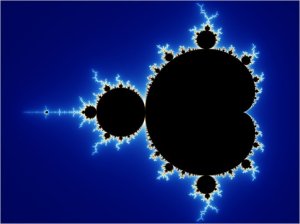
Benoit Mandelbrot – RIP

Benoit Mandelbrot passed away at age 85. RIP

For those familiar with Jonathan Coulton’s song Mandelbrot Set, his thoughts are posted here.

And if you’re not familiar with the song, listen below.

Jonathan Coulton – ‘Mandelbrot Set’ from Best. Concert. Ever.

(Parental note: There is some language in this song)

Categories
Computers Windows 7

More on NVIDIA nView Desktop Manager

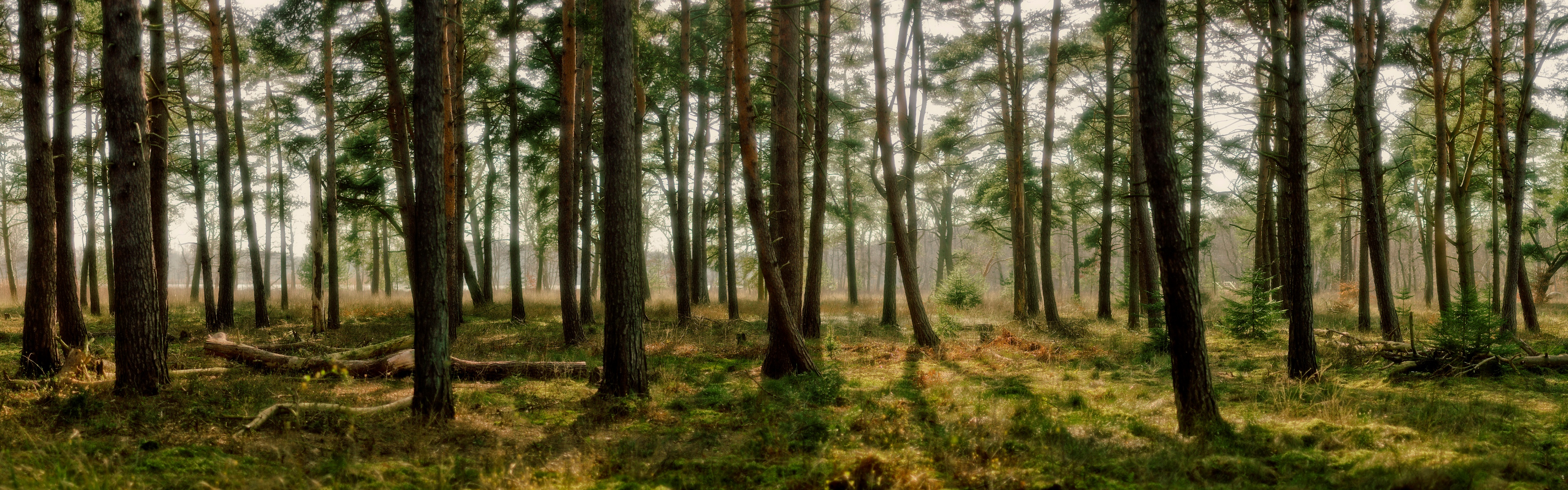
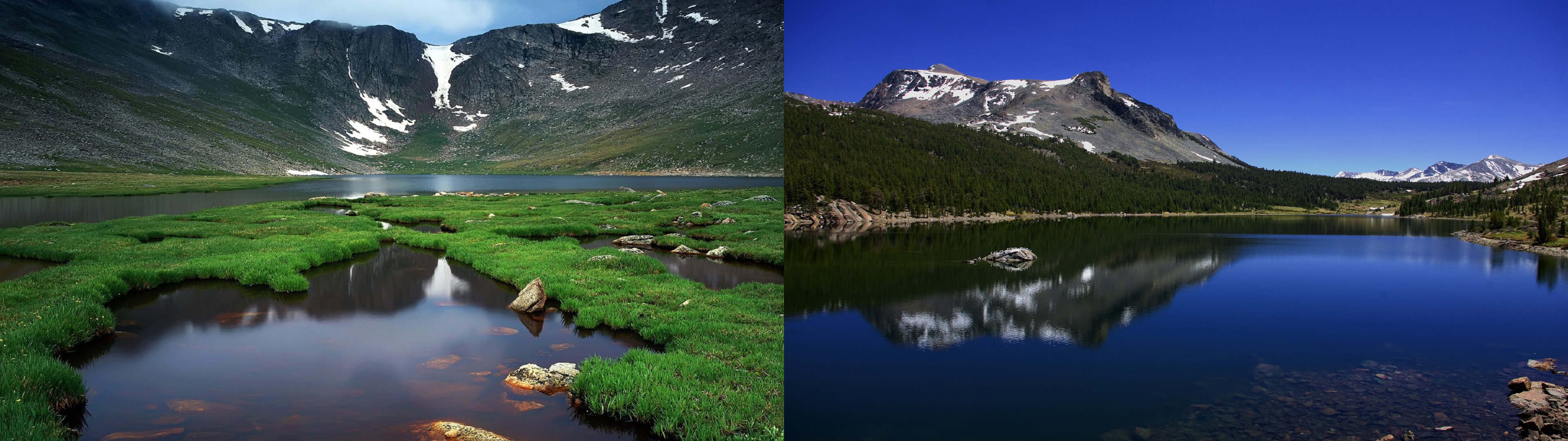
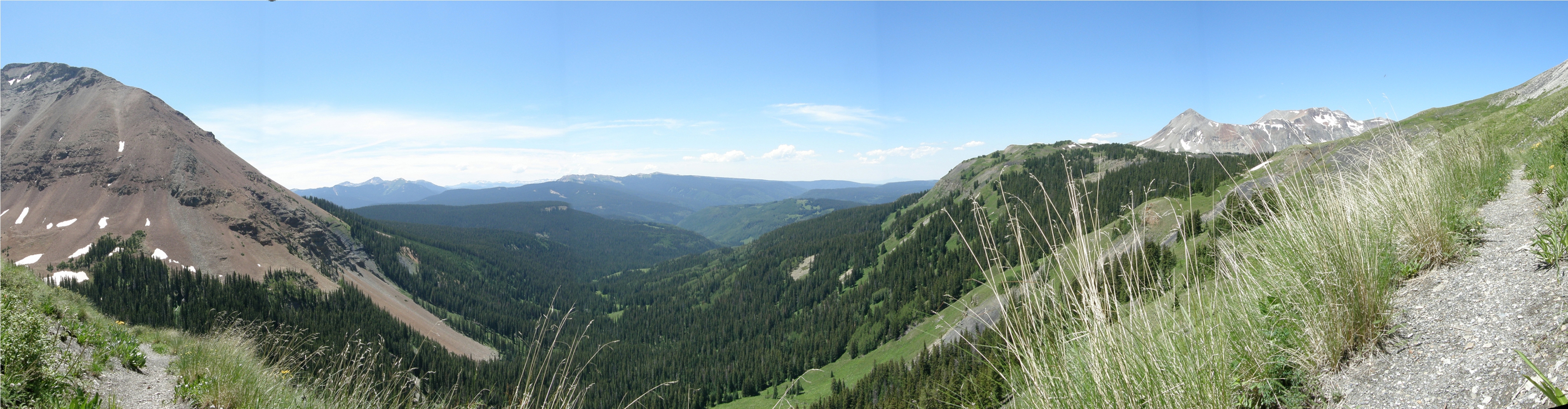
A couple of posts back, I mentioned how I got the Nvidia nView Desktop Manager to work in Windows 7. What it did for me was to display two different images on each monitor, however, I no longer had the ability to cycle the backgrounds (i.e. slide show) – a new feature in Windows 7. Since then I did a little more poking around. What happens is that each image that form wallpaper for each monitor is actually merged into one file/image that windows then displays at the appropriate resolution to display correctly across both screens. The file it creates is then located in c:\Users\<username>\AppData\Roaming\nView_Wallpaper, with the file name of PerMonitorWallpaper0.bmp (that’s with a zero).

So what I was then able to do was copy the file to a location I like to keep my backgrounds (for me I created a Backgrounds folder in my Pictures library). I then resaved as a jpg. I then chose new backgrounds in nView Desktop Manager to create a few more backgrounds, copy those to my Backgrounds folder in Pictures, so that I have a few more available. I downloaded a few that are dual monitor specific wallpapers (i.e. 3960×1080 or 3960×1200 wallpapers are available). Lastly, I configured my Windows theme settings to use these backgrounds, cycling then every 5 minutes. Some of the backgrounds are below – both the nView created ones, and the dual monitor ones I downloaded.

Categories
Computers Internet Social Networking

Sigh… Oh Facebook

I usually don’t like to post rants, but once again (and this is the reason for the “sigh” – the type of sigh that perhaps a parent gives a child for repeating the same thing to continually get in trouble), Facebook has forced upon their users “enhancements” that open up privacy concerns. This time though, US senators are weighing in. Now I usually do not have much faith in any government body to speak to technology issues adequately, but in this case, they echo the concerns many folks have. What I would hate to see though is government feeling the need to legislate regulations; instead technology companies should exercise some self policing and check themselves before doing something that their audience, or a good portion thereof, may take exception to.

So a couple of simple things that could have helped Facebook, had they thought of them, regarding these personalized site experiences that they are piloting.

1. It’s a pilot. Pilot programs do not place 100% of their users into the program, especially without their consent.

2. Any feature add that has the potential to broaden exposure of someone’s data needs to be OPT-IN. If the feature is that good, those people who want it will opt-in. Others simply don’t need to do anything and feel like nothing is being forced upon them. Let the features sell themselves.

There are plenty of privacy controls in Facebook, but in this case the opt-out process is multi-step and may not be all that intuitive for everyday users. As they add more partner sites with their respective applications, will one need to opt-out of each one individually? That would become quickly unmanageable.

Hopefully Facebook will slow down a bit, think about first, then execute their moves on their own – before others that we or they may not want to – do it for them.

Categories
Computers Windows 7

NVIDIA nView Desktop Manager On Windows 7

I have a dual monitor setup at my desk at work (with my laptop – which is then linked via Input Director to my single monitor desktop). I just happened to stumble in Control Panel on my work laptop, which is Win XP, NVIDIA nView Desktop Manager. Upon launch, there was a button to enable the advanced settings which I did.  I was able to set a different wallpaper for each monitor.  Nice! Thinking I have an NVIDIA GeForce in the home system, which is Windows 7, I should have this functionality there. But I guessed wrong, the option was not there for me in Control Panel. Good time to update my drivers to see if the latest includes the nView Desktop Manager.

I installed the latest drivers for the GeForce 8 series, rebooted, and still no dice. I Googled for any solutions, and checked some forums that came up in the search. There are some folks out there that are quite upset that NVIDIA apparently decided to no longer include this in the install of drivers by default. But there was a solution that stated to take the download of the driver, expand it using something like Winrar or 7-Zip, then expand the nview.cab file, then launch the install found once expanded. When I did this though, there was no nview.cab. A little more research revealed that NVIDIA is no longer including this in the GeForce driver, but Quadro drivers only. I downloaded the Quadro driver. I then expanded this using 7-Zip and sure enough the nview.cab was there. Expanding this and running the setup for nView Desktop Manager worked without any issues. Note I DID NOT install the Quadro driver for my GeForce. I only used the Quadro download for the purposes of getting the desktop manager installed.

I now have dual monitors with different backgrounds (see below). This should hopefully work for anyone with a GeForce card that wants this functionality.

Edit Oct 28, 2010: Based on some comments, it looks as though this is no longer available in the current versions (259.x, 260.x) of the drivers. If you do download, you’ll want to go for an older version (197.x and others) – so long as they are still available.